Connecting Your Location Sources
The Location Sources page in GeoPulse is your central hub for connecting and managing external applications that send your GPS data. By integrating with third-party tracking apps, you can automatically sync your location history with GeoPulse, ensuring your timeline is always up-to-date.
You can access this page by navigating to Location Sources page from the menu or /app/location-sources in your browser.
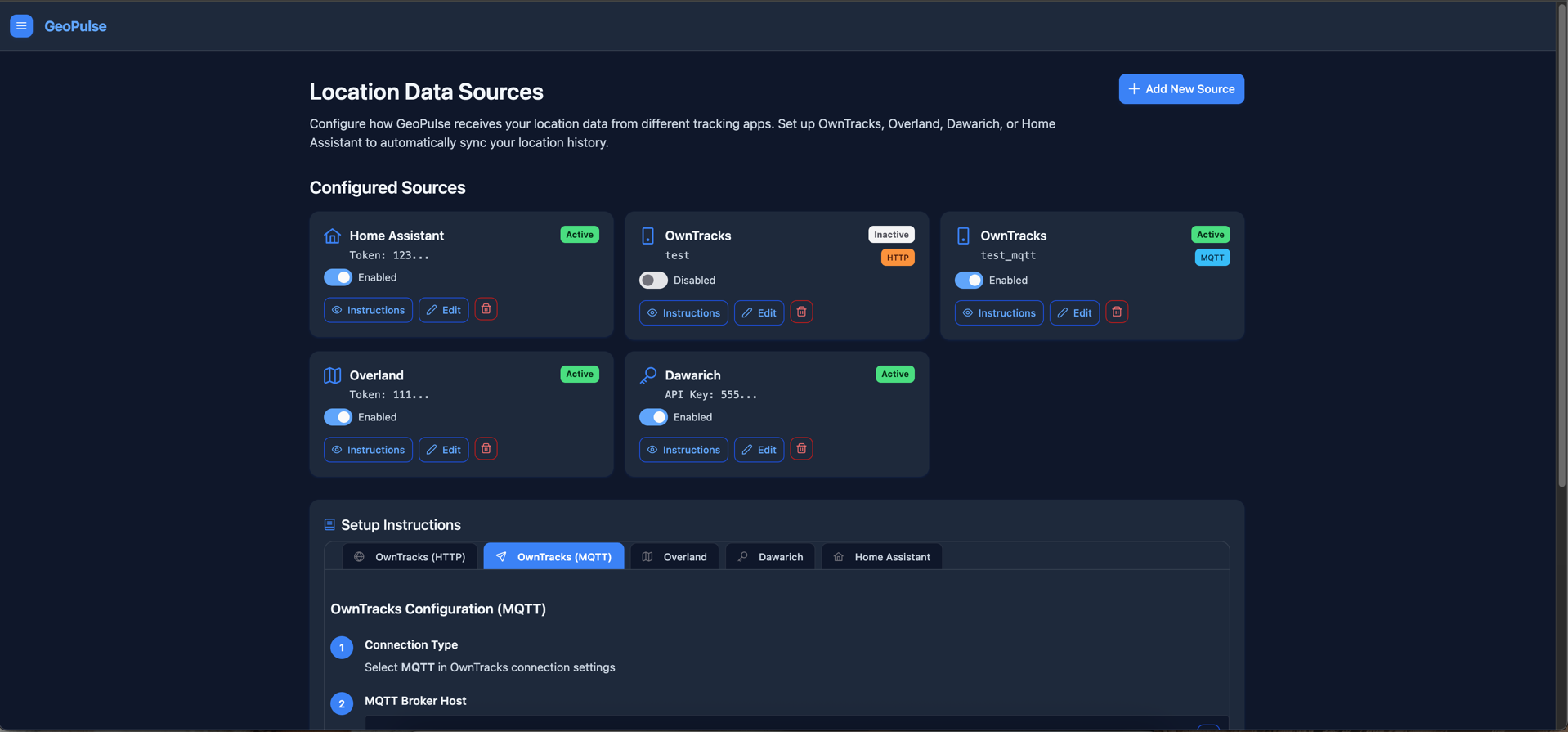
Adding New Location Sources
To begin, click the Add New Source button.
GeoPulse supports a variety of common location tracking apps, including:
- OwnTracks: A popular open-source solution that can send data via HTTP or MQTT.
- Overland: A simple HTTP endpoint with token-based authentication.
- Traccar: Position Forwarding integration using JSON payloads and bearer token auth.
- GPSLogger: A versatile Android app that can be configured to send data via the OwnTracks HTTP format.
- Dawarich: A privacy-focused tracking app with API key authentication.
- Home Assistant: Integrate with your smart home automation to send location updates.
- Colota: Privacy-focused tracker with batch sync and smart tracking support.
During the creation process, you will provide the necessary credentials (e.g., username/password or a token/API key) specific to the chosen third-party system.
Managing Configured Sources
Once configured, your location sources will appear as individual cards in the Configured Sources section. Each card provides a summary of the source and quick actions:
- Source Information: Displays the app type (e.g., OwnTracks), its identifier (e.g., username or a token snippet), its current status (Active/Inactive), and for OwnTracks, the connection type (HTTP/MQTT).
- Enable/Disable: A toggle switch to quickly activate or deactivate the source without deleting it.
- Instructions: Click this button to view detailed setup instructions for that specific source type.
- Edit: Modify the source's credentials or filtering settings.
- Delete: Permanently remove the source from GeoPulse.
GPS Data Filtering
For each location source, you can optionally enable GPS Data Filtering. This feature helps improve the quality of your timeline by automatically rejecting GPS points that appear to be inaccurate or erroneous.
You can configure:
- Max Allowed Accuracy: GPS points with an accuracy value (in meters) greater than this limit will be ignored. This helps filter out points with poor signal quality.
- Max Allowed Speed: GPS points indicating a speed (in km/h) greater than this limit will be ignored. This is useful for filtering out unrealistic data spikes that can occur due to GPS errors.
These filtering settings are applied per individual source, allowing you to fine-tune data quality based on the characteristics of each tracking app or device.
Setup Instructions
Below your configured sources, a dynamic Setup Instructions section appears. This section provides detailed, step-by-step guides for integrating each of your currently active source types with GeoPulse. It includes all the necessary URLs, data formats, and authentication details you'll need to set up the third-party app.
For more in-depth guides on each specific integration, please refer to the dedicated documentation pages: