User Profile Settings
Customize your GeoPulse experience by configuring your profile information, preferences, and display settings. Your profile settings control how you see data, how maps are displayed, and what page you land on after login.
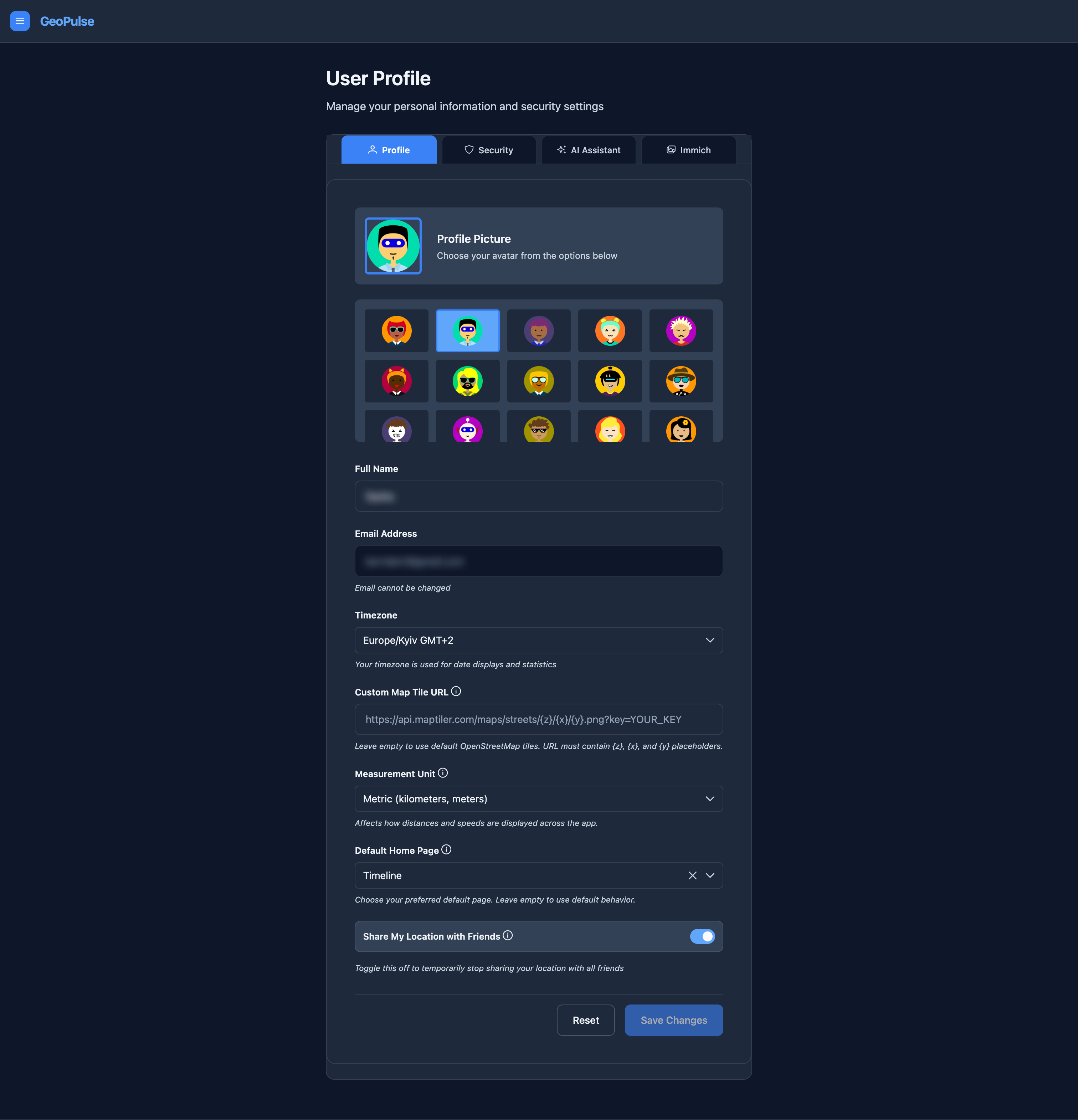
Accessing Profile Settings
- Click on your avatar in the top-right corner of the interface
- Select Profile from the dropdown menu
- The Profile tab opens by default with all your personal settings
Profile Picture
Choosing Your Avatar
GeoPulse provides 20 professionally designed avatars to choose from:
- Your current avatar is displayed at the top with a blue border
- Scroll through the available avatars in the grid below
- Click any avatar to select it
- Your selection is highlighted with a blue border
- Click Save Changes to apply your new avatar
Your avatar appears in the navigation bar, on the Friends page (if you're sharing location), and in any shared views where your location is visible to friends.
Personal Information
Full Name
Your display name shown throughout the GeoPulse interface.
- Required field - must be at least 2 characters
- Used in the interface and when friends view your shared location
- Can contain letters, numbers, and spaces
- This is separate from your login username
Email Address
Your email address is displayed but cannot be changed after account creation.
Email addresses are used as unique identifiers for user accounts. To change your email, contact your GeoPulse administrator who can update it at the system level.
Display Preferences
Timezone
Select your local timezone to ensure all dates and times are displayed correctly.
How it's used:
- Timeline events show in your local time
- Dashboard statistics reflect your timezone
- Date/time filters use your timezone
- Activity timestamps are converted to your local time
Tips:
- Use the filter/search box to quickly find your timezone
- Over 50 major timezones are available
- Changes take effect immediately after saving
- Affects both past and future data displays
Example timezones:
America/New_York- Eastern Time (GMT-5)Europe/London- British Time (GMT+0)Asia/Tokyo- Japan Standard Time (GMT+9)Australia/Sydney- Australian Eastern Time (GMT+10)
Measurement Unit
Choose how distances and speeds are displayed throughout GeoPulse.
Options:
| Unit | Distance | Speed | Best For |
|---|---|---|---|
| Metric | Kilometers, meters | km/h | Most of the world |
| Imperial | Miles, feet | mph | United States, UK |
What it affects:
- Trip distances in Timeline and Dashboard
- Speed indicators on maps and activity views
- Journey Insights statistics
- Exported data displays
- All distance-related filters and calculations
Your measurement unit preference applies to all pages and reports, ensuring consistent data presentation.
Time Format
Choose how times are shown in user-facing timestamps.
Options:
- 24-hour - examples:
13:45,03:07:59 - 12-hour - examples:
1:45 PM,3:07:59 AM
What it affects:
- Timeline cards, tables, dialogs, and map popups
- Notification timestamps in the app
- Geofence notification message timestamps
Default: 24-hour
Default Home Page
Choose which page you see after logging in or when you click the GeoPulse logo.
Available options:
- Timeline - Your chronological location history
- Dashboard - Statistics and overview
- Journey Insights - Detailed trip analysis
- Friends - Location sharing with friends
- Rewind - Time-based location playback
- GPS Data - Raw location point data
- Location Sources - Manage your data import sources
- Custom URL - Specify any internal path
Using Custom URLs:
- Select "Custom URL..." from the dropdown
- Enter an internal path starting with
/(e.g.,/app/dashboard) - Must be a valid GeoPulse page path
- Useful for bookmarking specific views or filtered pages
Examples:
/app/timeline?date=2024-01-01
/app/dashboard
/app/journey-insights?month=current
If you don't set a default home page, GeoPulse uses its built-in default (typically Timeline).
Map Customization
Custom Map Tile URL
Replace the default OpenStreetMap tiles with custom map styles from providers like MapTiler, Mapbox, or any tile service.
URL Format:
https://api.maptiler.com/maps/streets/{z}/{x}/{y}.png?key=YOUR_API_KEY
Required placeholders:
{z}- Zoom level{x}- Tile X coordinate{y}- Tile Y coordinate
How to set up:
- Sign up for a map tile service (MapTiler, Mapbox, etc.)
- Get your API key from the provider
- Copy the tile URL template
- Paste it into the Custom Map Tile URL field
- Save changes
Popular map providers:
| Provider | Example URL |
|---|---|
| MapTiler | https://api.maptiler.com/maps/streets/{z}/{x}/{y}.png?key=YOUR_KEY |
| Mapbox | https://api.mapbox.com/styles/v1/mapbox/streets-v11/tiles/{z}/{x}/{y}?access_token=YOUR_TOKEN |
| Thunderforest | https://tile.thunderforest.com/cycle/{z}/{x}/{y}.png?apikey=YOUR_KEY |
| Stamen | https://tiles.stadiamaps.com/tiles/stamen_terrain/{z}/{x}/{y}.png |
GeoPulse automatically proxies all custom tile requests through its backend, eliminating CORS (Cross-Origin Resource Sharing) issues that typically occur when loading tiles directly from third-party providers.
Validation:
- URL must start with
http://orhttps:// - Must contain all three placeholders:
{z},{x},{y} - Maximum length: 1000 characters
Leave empty to use the default OpenStreetMap tiles.
For more details, see Custom Map Tiles.
Saving Your Changes
Save Button
The Save Changes button is only enabled when you've made modifications:
- Disabled (grayed out) - No changes to save
- Enabled (blue) - Changes are pending
Reset Button
Click Reset to discard all unsaved changes and restore your current settings.
What gets reset:
- All form fields return to their saved values
- Avatar selection reverts to current avatar
- Any validation errors are cleared
Tips and Best Practices
Optimize Your Profile
- Choose a recognizable avatar - Makes it easier for friends to identify you
- Set your correct timezone - Essential for accurate time-based filtering
- Configure custom map tiles - Improve map aesthetics with satellite imagery or styled maps
- Set a default home page - Save time by landing on your most-used page
Privacy Considerations
- Location sharing - Disable when you want temporary privacy
- Custom map tiles - External tile providers may log your map requests
- Avatar selection - Choose avatars that don't reveal personal information
Performance Tips
- Custom tile URLs - Some providers are faster than others; test different services
- Measurement units - Choose what you're comfortable with for quick comprehension
- Default home page - Set it to your most-used page to reduce clicks
Troubleshooting
Changes Not Saving
Problem: Clicking Save doesn't appear to work
Solutions:
- Check for validation errors (red text under fields)
- Ensure Full Name is at least 2 characters
- Verify custom URLs have required placeholders
- Check your internet connection
- Try refreshing the page and re-entering changes
Custom Map Tiles Not Loading
Problem: Maps are blank or showing errors
Solutions:
- Verify your API key is correct
- Check the URL contains
{z},{x}, and{y}placeholders - Ensure URL starts with
https://(nothttp://for some providers) - Try removing the custom URL to test with default tiles
- Check your tile provider's usage limits
Timezone Not Taking Effect
Problem: Times still show incorrectly
Solutions:
- Verify you clicked Save Changes
- Refresh the browser page (Ctrl+F5 or Cmd+Shift+R)
- Check you selected the correct timezone from the list
- Log out and log back in
Avatar Not Updating
Problem: New avatar doesn't appear
Solutions:
- Ensure you clicked Save Changes after selecting
- Hard refresh your browser (Ctrl+F5 or Cmd+Shift+R)
- Clear browser cache
- Try selecting a different avatar first, save, then select your desired one
Related Settings
For more customization options, see:
- AI Assistant Settings - Configure AI-powered features
- Custom Map Tiles - Detailed map customization guide
- Measurement Units - Distance and speed preferences
- Immich Integration - Photo management integration
Frequently Asked Questions
Q: Can I use my own image as an avatar? A: Currently, GeoPulse only supports the 20 predefined avatars. Custom image uploads are not available.
Q: Can I change my email address? A: Email addresses cannot be changed through the user interface. Contact your GeoPulse administrator if you need to update your email.
Q: Do I need an API key for custom map tiles? A: Most professional map tile providers require an API key. However, some services like OpenStreetMap derivatives may offer free tiles without authentication.
Q: Will changing my timezone affect my historical data? A: No, your location data is stored with UTC timestamps. Changing your timezone only affects how times are displayed, not the underlying data.
Q: Can I hide my location from specific friends only? A: The current location sharing toggle affects all friends simultaneously. Per-friend visibility controls are not yet available.
Q: What happens if I enter an invalid custom URL? A: GeoPulse validates URLs before saving. If a URL is invalid, you'll see an error message explaining what needs to be corrected.
Q: Are there costs for using custom map tiles? A: It depends on your provider. Most services offer free tiers with usage limits, then charge for higher volumes. Check your provider's pricing.